Rane SYSTEM ONE | Installing and setup of an Internal Drive
Rane SYSTEM ONE | Installing and setup of an Internal Drive
To create internal storage space on SYSTEM ONE, you can purchase a SATA (Serial ATA) drive and install it yourself.
This guide explains how to format an unformatted internal drive so it can be used correctly by your device.
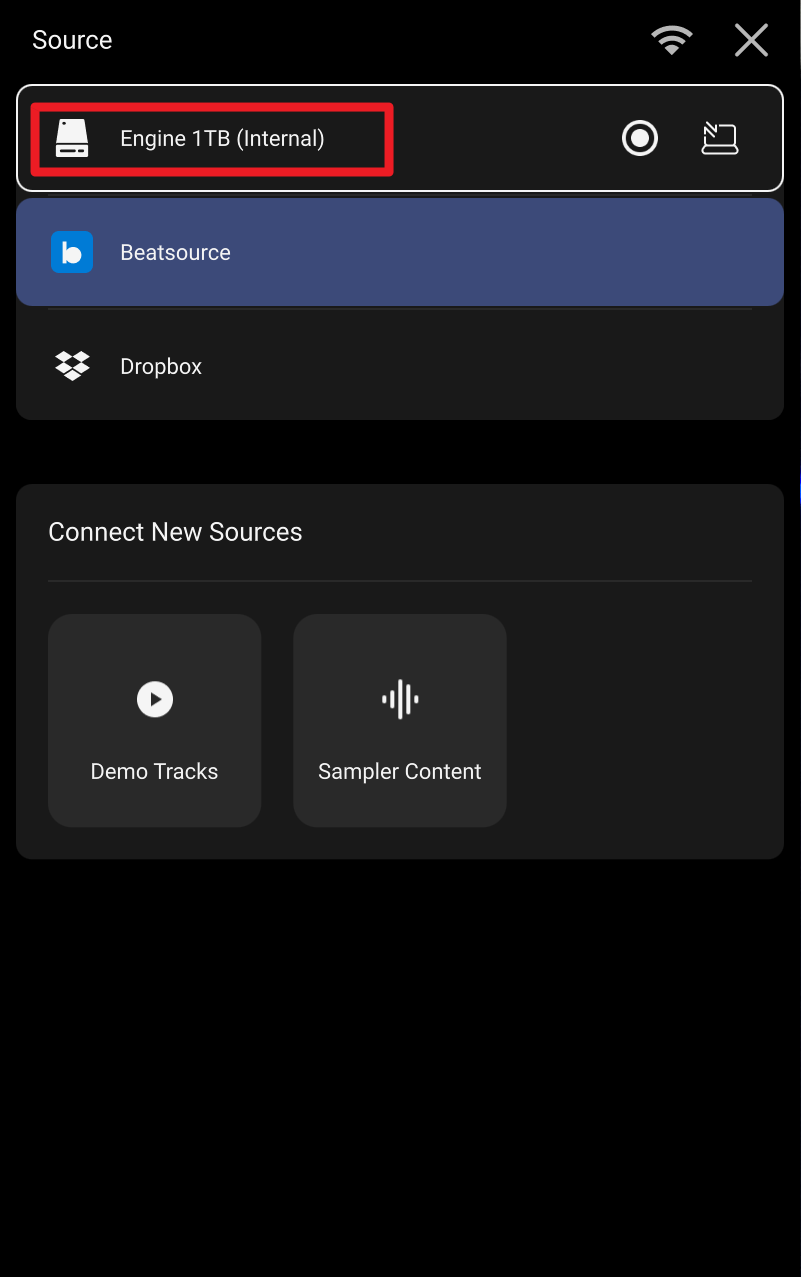
The drive must be formatted as ExFAT using either macOS or Windows. If the drive is not formatted correctly, the device will continue to show “Setup Internal Drive” in the Source screen.
Once formatting is complete the drive will become available as a valid Source in Engine OS and can have tracks packed from Engine DJ.
Before you begin, ensure the internal drive is physically installed in the device.
You will need:
- A Mac or Windows PC
- The included USB cable to connect the device to your computer
Warning: Formatting will erase all data on the drive!
Step 1: Connect the Device to Your Computer
- Power on the device.
- Connect it to your Mac or Windows PC using a USB cable.
- In the Source screen, select the Setup Internal Drive tile to make it accessible via your computer.
- Wait for the internal drive to appear on your computer and follow instructions for Mac or Windows below.
Step 2a: Format drive using MacOS
- Open Disk Utility
- In Disk Utility, select View → Show All Devices
- In the sidebar, select the internal drive (not an existing volume under it). The drive may be listed as:
- Untitled
- Unknown
- Or with the manufacturer name
⚠️ Be careful to select the correct drive to avoid erasing other storage devices.
- Click Erase
- Use the following settings:
- Name: (Choose any name, e.g. EngineDrive)
- Format: ExFAT
- Scheme: GUID Partition Map
- Click Erase to confirm and proceed
- The drive should now appear mounted in Finder
- Close Disk Utility
- You can now safely eject the device from macOS.
Step 2b: Format drive using Windows
- Open Disk Management
- Initialize the Drive (If Prompted)
- If Windows asks to initialize the disk:
- Choose GPT (GUID Partition Table)
- Click OK
⚠️ Be careful to select the correct drive to avoid erasing other storage devices.
- Create and Format the Volume
- Locate the internal drive (it may show as Unallocated)
- Right‑click the unallocated space
- Select New Simple Volume
- Follow the wizard:
- Assign a drive letter (any is fine)
- File system: ExFAT
- Allocation unit size: Default
- Volume label: (Optional, e.g. EngineDrive)
- Click Finish and wait for formatting to complete.
- The drive should now appear on your PC
- You can now safely eject the device from Windows
Step 3: Exit Device Storage Mode on the Rane SYSTEM ONE
- On the device, press the Exit Mode button on the Device Storage screen
You’re now ready to use the internal drive with Engine OS and Engine DJ!

Engine DJ | Tutorials